Workflow

Understand the full CueDraft workflow before you choose a plan.

This page maps the full CueDraft workflow in one pass: the fast cleanup layer, the review layer, the repeatable preset layer, and the privacy-first choice between local and hosted AI.

Quick Fix for the draft that is already close

Handle the low-ceremony cleanup case without turning every edit into a full session.

Workspace for the wording that deserves review

Move into compare, locks, history, and direct editing when the writing stops being low stakes.

Saved presets for repeated writing work

Keep recurring instructions close at hand instead of rebuilding prompts from memory.

Workflow map

CueDraft is one product with four clear layers. Pro includes the full workflow plus the local on-device path on Mac.

Speed layer

Quick Fix and Action Chooser keep everyday cleanup fast when the draft is already close.

Control layer

The panel keeps editing, compare, locks, history, and review visible when wording matters.

Repeatability layer

Saved presets, favorites, and folders turn recurring writing work into reusable actions.

Model choice

CueDraft Engine keeps writing local on your Mac, and hosted providers stay optional inside the same workflow.

Best use of this page

Start with the chapter that matches your main question, then use the capability inventory below as the structured scan.

Quick Fix

Use one conservative pass when the draft is already close

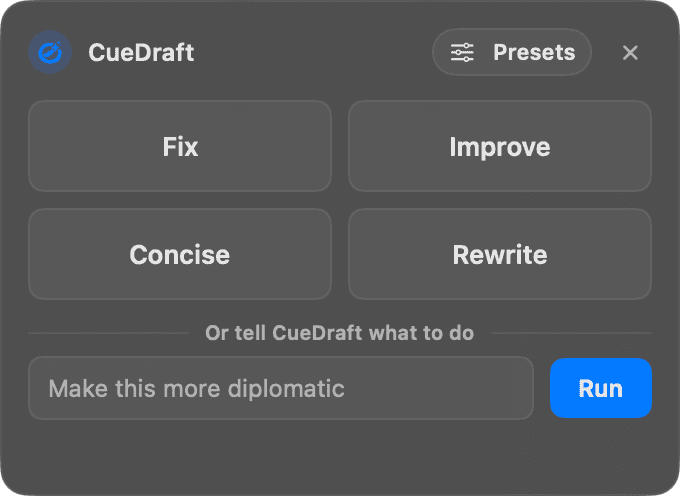
Quick Fix is for the common case: the sentence mostly works, and you want a faster, cleaner version without opening a bigger editing surface first.

  • Best for grammar, punctuation, spelling, and light clarity cleanup
  • Useful in browser fields, notes, docs, chat, and other everyday writing surfaces
  • Keeps the selected-text workflow moving when you do not need a larger editorial choice
CueDraft Quick Fix HUD showing a successful in-place writing cleanup

Quick Fix is the speed layer: small changes, low ceremony, and a quick way to improve the text you already selected.

Action Chooser

Choose a stronger selected-text action without opening the full panel

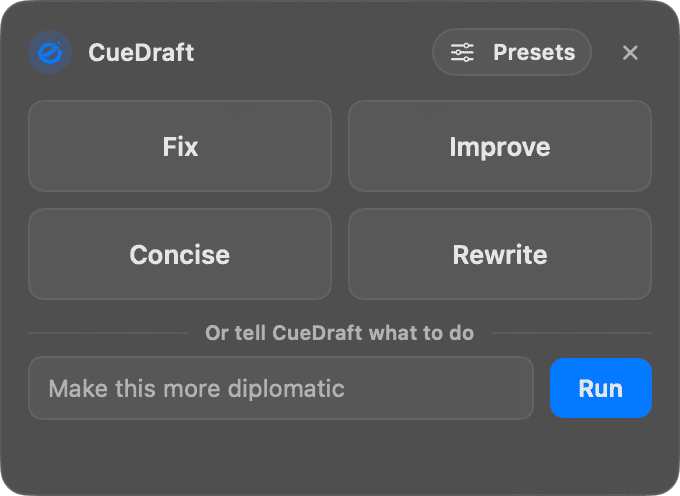
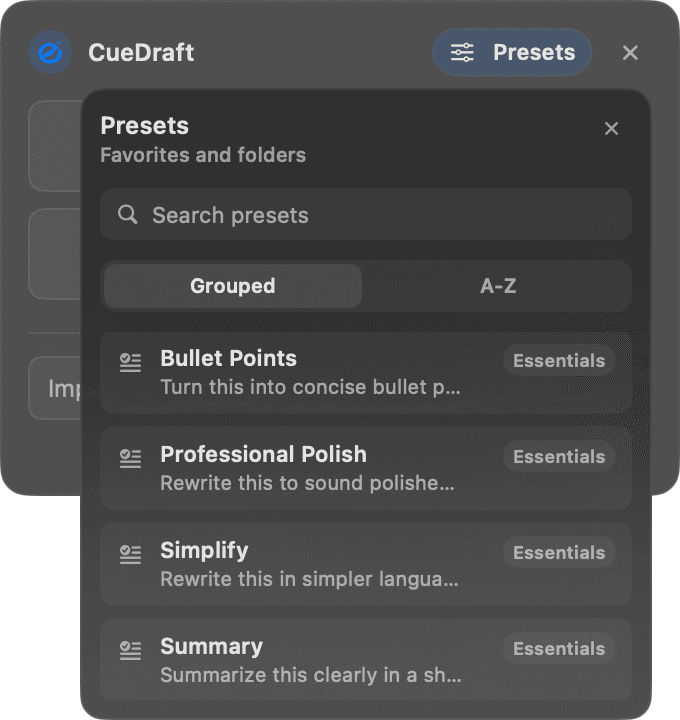
Action Chooser expands the same selected-text flow instead of replacing it. Capture once, then choose Fix, Improve, Concise, Rewrite, or a saved preset when the draft needs more than a conservative cleanup pass.

  • Best when you know the sentence needs more than conservative cleanup
  • Lets you pick Improve, Concise, Rewrite, or a reusable preset before running the edit
  • Keeps the workflow keyboard-first when the full panel would be overkill
CueDraft Action Chooser in dark mode showing quick actions and saved presets

Action Chooser keeps the faster no-panel path while still surfacing reusable presets for repeated work.

Full panel workspace

Open the panel when the writing deserves review, comparison, and control

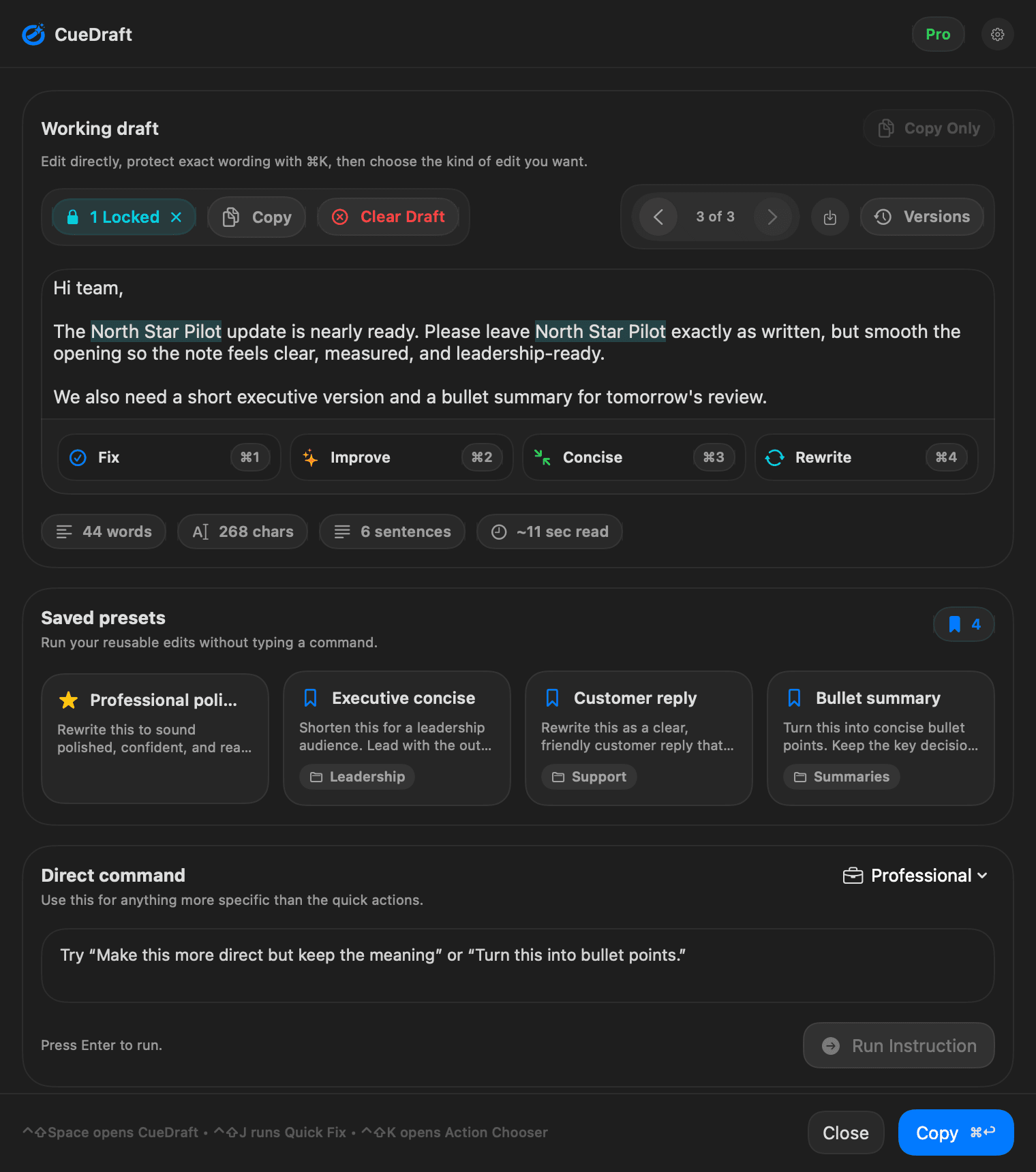
When the draft needs more judgment, CueDraft opens a full editorial workspace instead of pretending one answer is enough. Edit directly, compare revisions, and decide when the text is ready.

  • Visible actions for Fix, Improve, Concise, Rewrite, and custom instructions
  • Direct editing inside the panel before or after AI output
  • A deliberate review flow instead of immediate one-shot output
CueDraft panel workspace in dark mode showing editing, presets, and visible actions

The panel is where CueDraft becomes a serious editing tool rather than a one-shot rewrite surface.

Locks and revisions

Protect exact wording while you explore better drafts

CueDraft is built for writers who want leverage without giving up control. Locks, history, compare, and snapshots let you improve the draft while protecting the parts that should not move.

  • Lock exact words and phrases before rewriting
  • Compare current output against previous versions
  • Keep snapshots while you test multiple directions
  • Review changes before anything returns to the original app
CueDraft revisions view showing compare mode, version history, and protected text

The product keeps control visible instead of hiding it behind the latest generated answer.

Saved presets

Turn repeated writing work into reusable actions

Presets are for the jobs you do every week: customer replies, summaries, status updates, release notes, and internal rewrites with a known style. Save the instruction once, then run it like a normal writing action.

  • Save repeated instructions instead of rebuilding prompts from scratch
  • Use favorites and folders to keep a growing preset library easy to scan
  • Keep recurring work close to the keyboard instead of hidden in notes or snippets
CueDraft panel workspace showing saved presets and reusable writing actions in dark mode

The repeatability advantage is simple: when a writing job recurs, CueDraft lets it graduate into a reusable action.

CueDraft Engine and hosted AI

Keep writing local by default, with hosted AI only when you choose it

CueDraft is privacy-first by default. Use CueDraft Engine on your Mac when you want writing to stay local, or switch to a hosted provider when that is the better fit for a specific job. The editing workflow stays the same either way.

  • CueDraft Engine gives Pro users a curated on-device path on macOS
  • Hosted providers currently include OpenAI and Anthropic
  • Your writing only leaves the device when you explicitly choose a hosted provider
  • The editing workflow stays the same whether the work runs on-device or through a provider
CueDraft AI settings showing CueDraft Engine, hosted providers, and profile controls

CueDraft keeps one editing workflow while letting you decide whether a draft stays local or runs through a hosted provider.

Mac app workflow

Use one writing workflow across the Mac apps where work happens

CueDraft is designed around selected text in real Mac apps: browser fields, documents, chat tools, email, notes, and code-adjacent writing surfaces.

  • Selected-text capture from the frontmost app
  • Fast no-panel actions for quick edits
  • A full panel when review, locks, history, or custom instructions matter
  • Clear guidance when a surface is better handled by opening the panel first
CueDraft panel workspace showing selected-text editing controls in dark mode

The core product is simple: keep the writing in context, choose the right amount of help, and review the result when the draft needs judgment.

Full capability inventory

Every major capability in one clearer scan.

The chapters above explain the major workflow surfaces. The inventory below is the condensed capability scan for buyers who want the complete picture in one pass.

Speed and quick actions

  • Quick Fix for conservative cleanup
  • Fix, Improve, Concise, and Rewrite
  • Action Chooser for faster no-panel decisions
  • Direct custom instructions from the command composer
  • Tone modifiers for different writing situations
  • One selected-text workflow whether the change is small or significant

Workspace and control

  • Direct editing before or after AI output
  • Visible action buttons for the main writing modes
  • Locked text protection
  • Version history and snapshots
  • Compare between revisions
  • Copy or use flows from the same workspace
  • Highlighted issues, suggestions, and writing stats
  • A fuller review surface when one-shot output is not enough

Repeatability and presets

  • Saved presets for repeated tasks
  • Favorites and folders for larger preset libraries
  • Repeatable writing flows for recurring team or personal tasks
  • Direct custom instructions for one-off edits
  • Tone and reuse patterns that stay inside the same product

Models and Mac workflow

  • CueDraft Engine as the curated on-device path
  • Hosted providers including OpenAI and Anthropic
  • Hosted provider profiles for different jobs
  • One UI flow across CueDraft Engine and hosted AI
  • Selected-text capture from the frontmost app
  • A consistent workflow across browsers, Electron apps, Cocoa apps, and code-adjacent writing surfaces
  • Panel-first guidance when a no-panel action is not the right fit
  • Clear recovery options when an app cannot accept an edit directly
  • A Mac-native workflow rather than a separate browser rewrite box
Ready to choose a plan

If the workflow makes sense, pricing should settle the buying decision quickly.

The pricing page is intentionally short: one Pro plan, a free trial, no credit card required to start, and a clear explanation of what stays local.