
Stays close to the text
CueDraft appears beside the highlight. No app switch, no panel to drag into view.
CueDraft starts beside selected text, then gives you built-in actions, custom instructions, reusable presets, and a review workspace when the result needs more care.
Select text in a supported Mac app and CueDraft appears as a small button near the selection. Tap it to run an action, choose a preset, or write your own instruction without switching apps.
Please turn these notes into a clear product update.
Keep decisions, dates, and follow-up owners easy to scan.

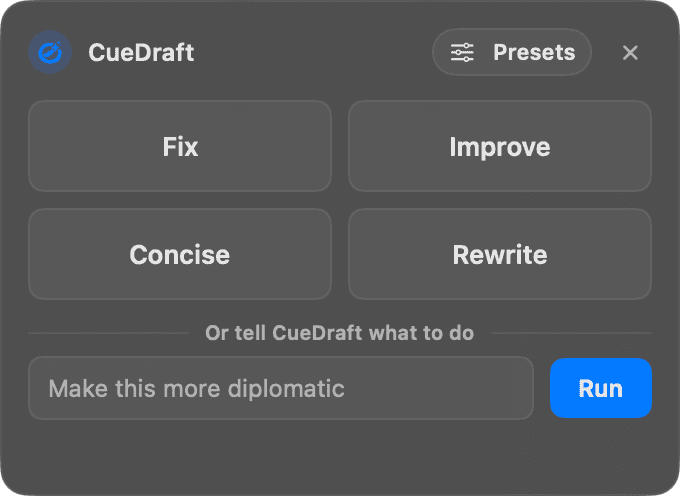
Actions, presets, and custom instructions stay close to selected text.
CueDraft appears beside the highlight. No app switch, no panel to drag into view.
Use built-in actions, saved presets, or a direct instruction for the exact text transformation you want.
Hide Assist globally, or per app or field, when a quieter editing surface is the right call.
CueDraft has fast built-in actions for common work and a custom instruction box for everything else. Clean text, summarize, translate, reply, format, structure data, or describe the result when the task is specific.
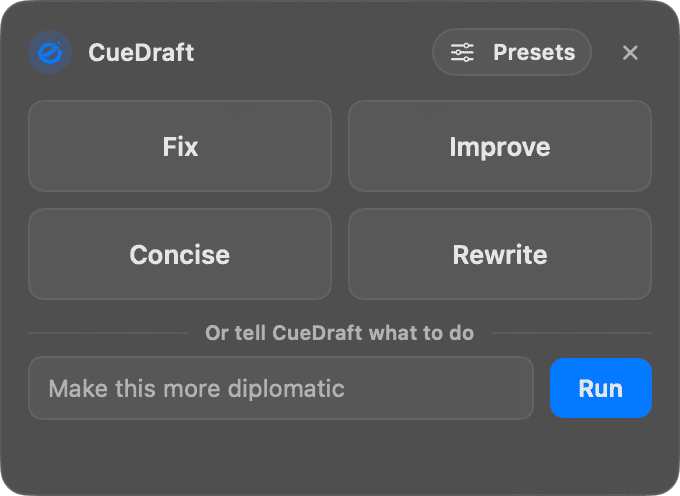
Quick Fix is tuned to clean up text without turning every small mistake into a full rewrite.
Summarize, translate, make bullets, draft a reply, format text, or change the tone from the same selection.
Ask CueDraft to turn messy notes into Markdown, CSV-style rows, checklists, release notes, or another structure.
Presets turn repeated text jobs into reusable actions. Save the instruction once for replies, summaries, translations, weekly updates, sales notes, or house style, then run it on selected text.
Please turn these notes into a clear product update.
Keep decisions, dates, and follow-up owners easy to scan.
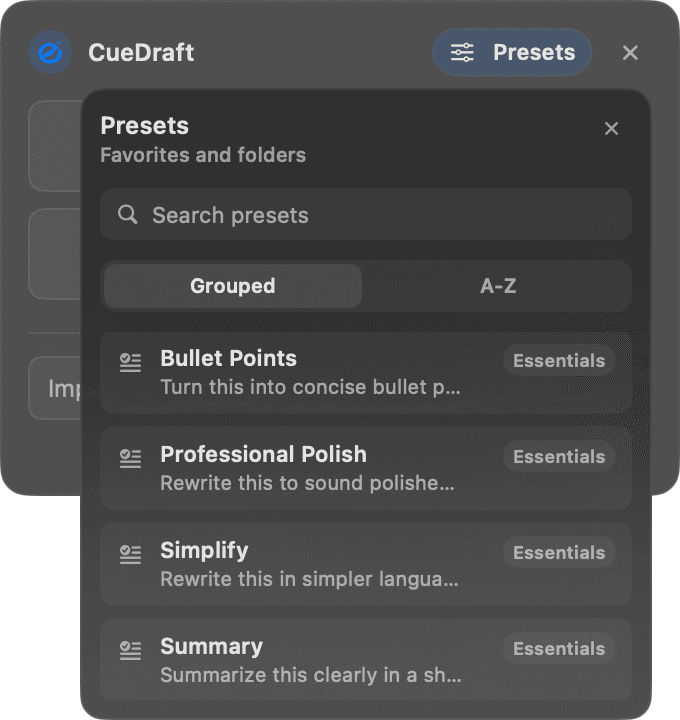
Save a concise, polite reply preset and run it wherever the customer message is selected.
Turn notes, threads, and rough updates into a consistent short summary.
Encode your preferred tone or structure once, then apply it from the same selected-text flow.
When a result deserves a second look, open the workspace. Compare revisions side by side, lock parts you have committed to, and run different actions until the output is right.
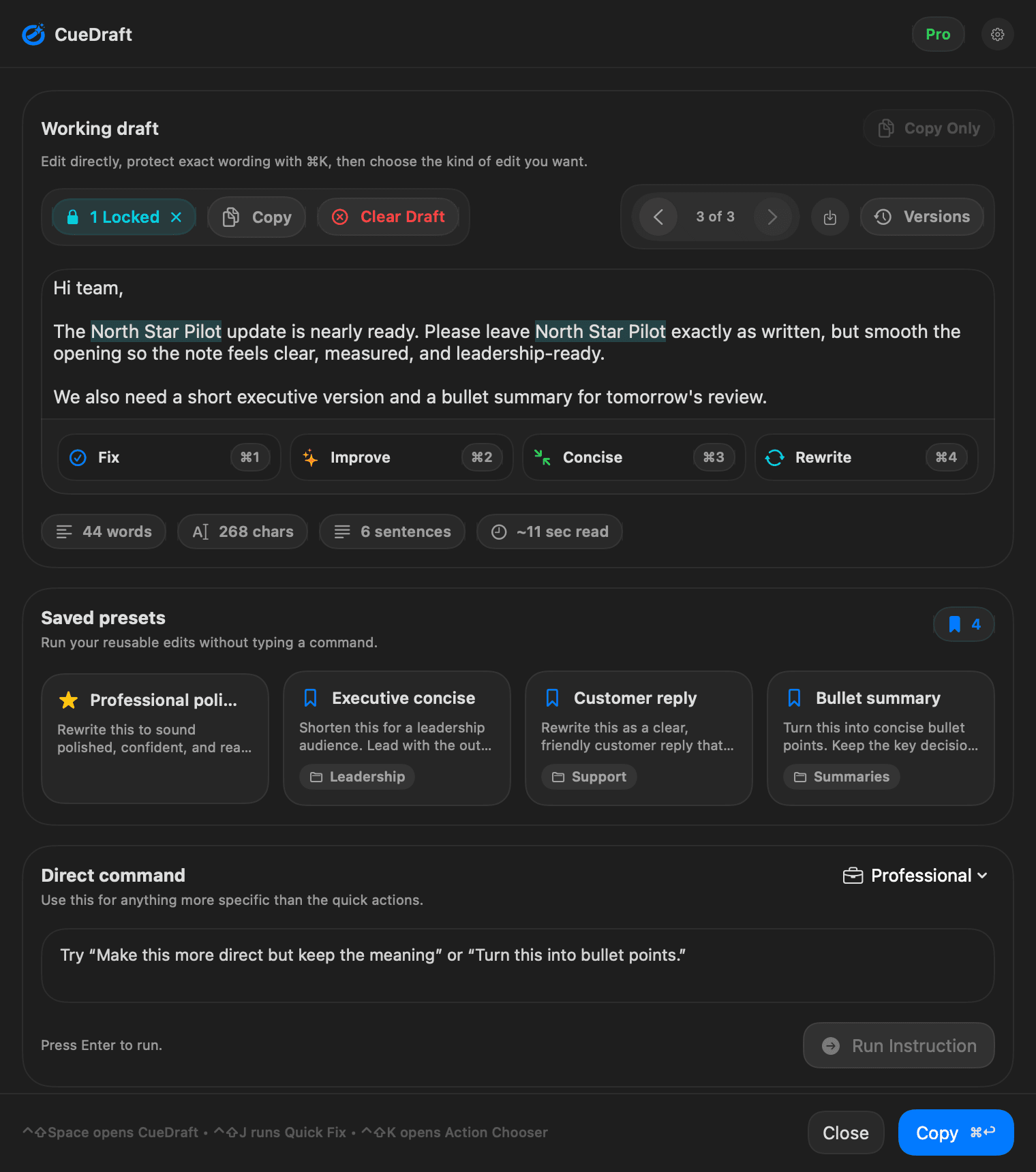
The workspace highlights what changed and leaves untouched lines exactly where they were.
Lock a sentence. Run another pass. Locked text stays the same — only the rest gets touched.
Every action in the workspace stacks as a revision you can compare and roll back to.
CueDraft is universal in the way it starts from selected text, while staying clear about app-specific Copy or Replace behavior and where generation runs.
CueDraft is strongest in browser fields, docs, notes, chat, email, and code-adjacent text. Copy or Replace depends on what the source app safely supports.
When direct replacement is unreliable or unsupported, CueDraft keeps the result visible in the workspace instead of pretending every app behaves the same.
CueDraft Engine keeps selected-text work on your Mac. Hosted providers stay optional for the runs where you explicitly choose them.